Is your Android phone slow, laggy, or freezing all the time? You don’t always need a new device. Often, 10–15 minutes of cleanup can make it feel much faster. Follow these simple steps to speed up your old Android phone.
Step‑by‑Step: How to Speed Up an Old Android Phone
Follow these steps in order. You can do all of this in about 10–15 minutes.
1. Clear Recent Apps and Restart (1 minute)
- Tap the Recent apps button (square or swipe‑up gesture).
- Tap Close all apps.
- Hold the Power button and tap Restart.
A fresh restart clears temporary files and stops stuck processes.
2. Uninstall Apps You Don’t Use (3 minutes)
Old apps eat RAM, storage, and battery.
- Open Settings > Apps (or Apps & notifications).
- If available, sort by Most used or Storage.
- Uninstall:
- Games you don’t play
- Old shopping/offer apps
- Duplicate apps (multiple browsers, cleaners, etc.)
Aim to remove at least 5–10 unused apps.
3. Clear Cache for Heavy Apps (3 minutes)
Big apps (Facebook, Instagram, Chrome, YouTube, etc.) build huge cache files.
- Go to Settings > Apps.
- Tap a heavy app (e.g., Chrome, Instagram).
- Tap Storage & cache (or Storage).
- Tap Clear cache (not “Clear data” unless you know what you’re doing).
Repeat for all major apps you use daily.
For more details, you can also follow Google’s official instructions for managing storage on Android.
4. Disable or Uninstall Bloatware (3 minutes)
Some preinstalled apps you never use still run in the background.
- Go to Settings > Apps.
- Tap an app you never use (for example: preinstalled games, demo apps).
- If you see Uninstall, use it.
- If uninstall is not available, tap Disable.
Do not disable critical system apps like Phone, Messages, System UI, or Google Play Services.
5. Turn Off Animations (2 minutes)
Reducing animations makes your phone feel snappier.
- Open Settings > About phone.
- Tap Build number 7 times to enable Developer options (enter PIN if asked).
- Go back to Settings > System > Developer options (path may vary slightly by brand).
- Find:
- Window animation scale
- Transition animation scale
- Animator duration scale
- Set all three to 0.5x or Off.
6. Free Up Home Screen and Widgets (1 minute)
- Long‑press on your Home screen.
- Remove live wallpapers if you’re using them.
- Delete widgets you don’t need (weather, news, clocks, etc.).
- Keep only the most important icons on the first screen.
A simple home screen loads faster and feels cleaner.
7. Update Android and Apps (2 minutes)
New updates often fix bugs and improve performance.
System update
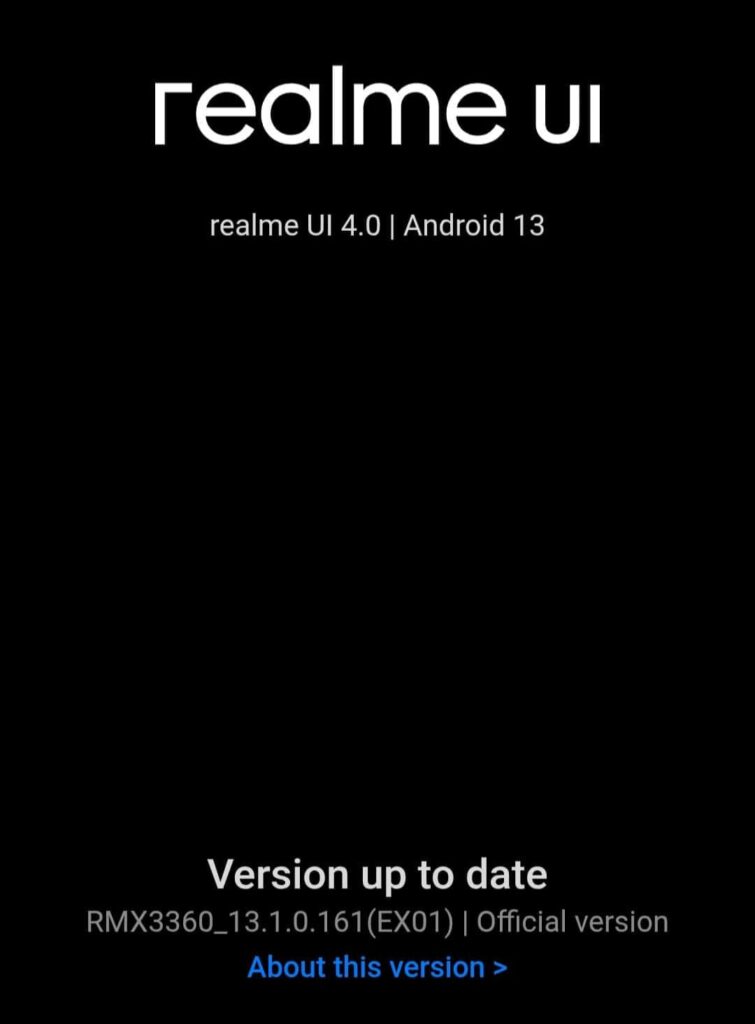
- Go to Settings > System > Software update (or About phone > System update).
- Check for updates and install updates if available.
App updates
- Open the Google Play Store.
- Tap your profile icon > Manage apps & device > Update all.
8. When It’s Still Too Slow: Final Options
If things are still bad after all this:
Backup and Factory Reset
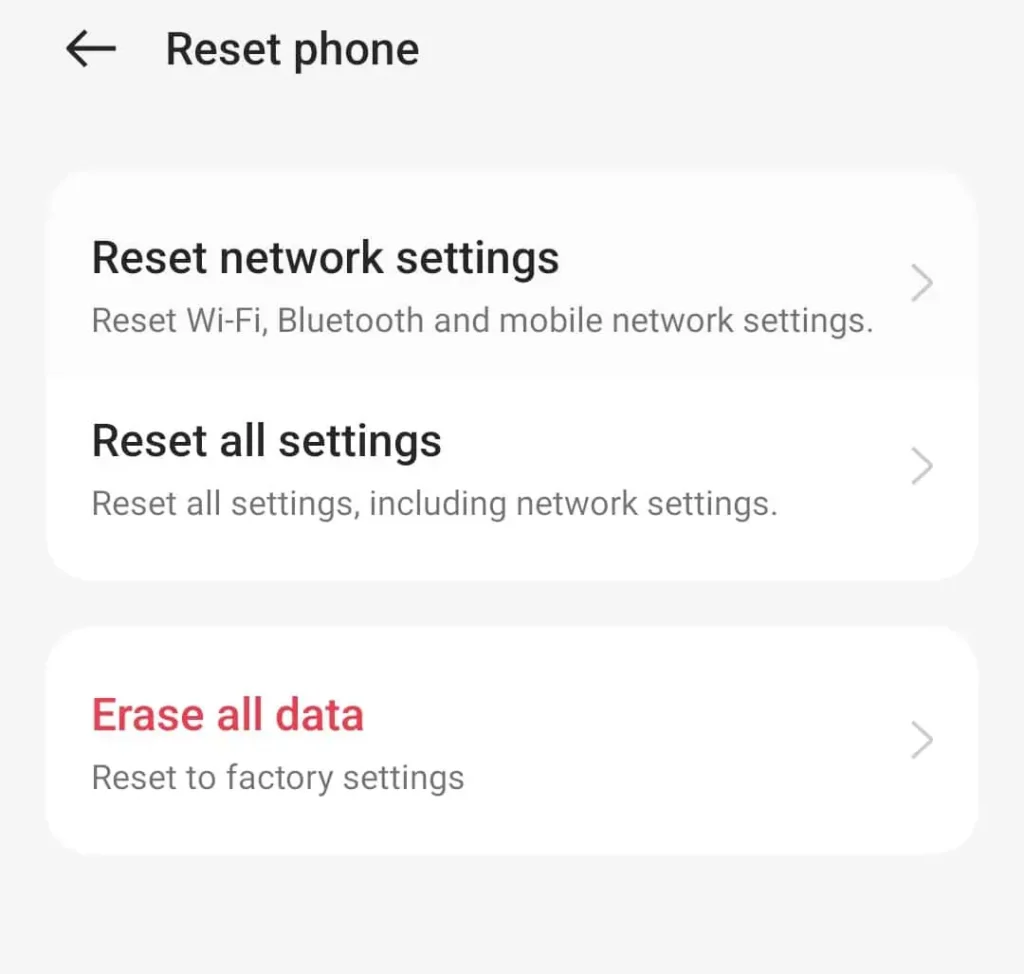
- Backup photos to Google Photos or Google Drive, and important files to your PC.
- Go to Settings > System > Reset options > Erase all data (factory reset).
- Confirm to reset. This gives you a completely fresh start.
Consider a Lightweight Launcher
- Install a lighter launcher (for example, any “lite” or minimal launcher) to reduce bloat from heavy manufacturer skins.
Final Thoughts
You don’t always need a new phone to get smooth performance. By uninstalling junk apps, clearing cache, disabling bloatware, and trimming animations, most old Android phones can feel much faster in just 15 minutes.
You can bookmark this checklist and repeat it every few months to keep your device running like new.