Is your phone battery draining faster than usual?
If your phone barely lasts through the day, you may not need a new battery or a new phone immediately. Display settings, background apps, weak mobile signals, location access, and outdated software can all increase battery usage.
The good news is that a few changes can make a noticeable difference. In this guide, you’ll learn how to improve battery life on Android phones and iPhones, identify the apps using the most power, and avoid habits that can shorten battery health over time.
Menu names can vary slightly depending on your phone model and software version, but the main steps are similar.
1. Find the apps using the most battery
Before changing many settings, find the biggest source of battery drain.
On Android
- Open Settings.
- Tap Battery or Battery and device care.
- Open Battery usage.
- Review the apps at the top of the list.
On iPhone
- Open Settings.
- Tap Battery.
- Review the battery-usage chart and app list.
- Compare usage over the last 24 hours or the last 10 days.
If an app uses a large amount of battery even when you rarely open it, check whether it needs background activity, location access, or notifications.
2. Reduce screen brightness
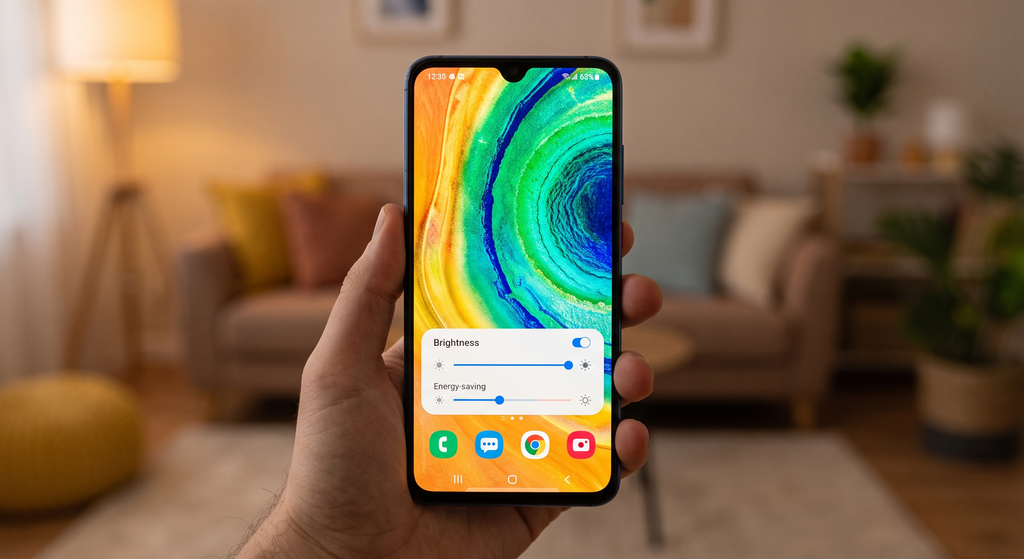
The display is often one of the largest battery users, especially when your brightness is high.
Try these changes:
- Turn on Adaptive brightness on Android.
- Turn on Auto-Brightness on iPhone.
- Lower brightness manually indoors.
- Reduce the screen timeout or Auto-Lock time.
- Avoid leaving the screen on while you are not using the phone.
A shorter screen timeout is especially useful because it prevents the display from staying active in your pocket or on a table.
3. Use Dark Mode when it suits your phone
Dark Mode can reduce power use on phones with OLED or AMOLED screens because darker pixels may use less energy. The difference is usually smaller on LCD screens, but Dark Mode can still be more comfortable in low light.
Android
Go to Settings > Display and look for Dark theme or Dark mode.
iPhone
Go to Settings > Display & Brightness and select Dark.
Dark Mode is not a replacement for lowering brightness, but using both can help reduce screen-related battery consumption.
4. Turn off features you are not using
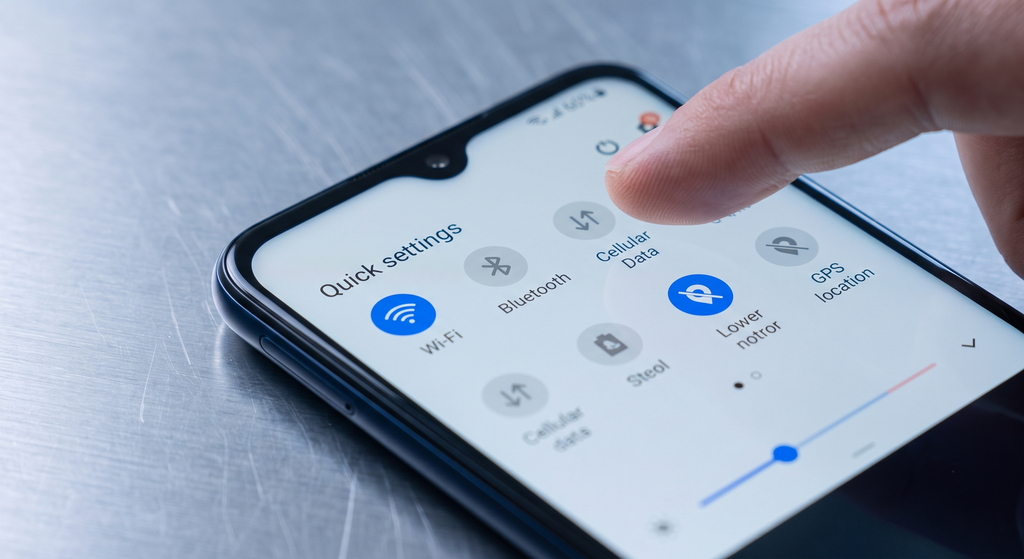
wireless features can continue searching for connections in the background. Turn off features you do not currently need, such as:
- Bluetooth
- Wi-Fi when you are away from Wi-Fi networks
- Personal hotspot
- NFC
- Nearby device scanning
You do not need to disable everything permanently. The goal is to avoid leaving unnecessary features active all day.
5. Improve battery life when the mobile signal is weak
Your phone may use more power when it struggles to maintain a mobile connection. This can happen in elevators, basements, rural areas, or buildings with thick walls.
When you are in an area with no signal and do not need to receive calls or messages, use Airplane Mode temporarily. Turn it off again when you need to reconnect.
If your phone supports 5G and the signal is inconsistent, try switching to a stable 4G or LTE setting. The option is usually found under Mobile Network or Cellular settings. The exact name depends on your phone and carrier.
6. Restrict background activity for power-hungry apps
Some apps refresh content, synchronize data, or use location services even when you are not actively using them.
Start with apps that:
- You rarely use
- Use a lot of battery in the settings report
- Send frequent notifications
- Track location continuously
- Upload photos or videos automatically
On Android, look for an app’s Battery settings and choose a restricted or optimized option where appropriate.
On iPhone, open Settings > General > Background App Refresh and disable it for apps that do not need to update in the background.
Do not restrict essential messaging, security, navigation, or work apps without checking how it will affect notifications and syncing.
7. Review location permissions
Location access can use battery, especially when several apps request it frequently.
Android
Open Settings > Location > App permissions. Review which apps can access your location and change unnecessary permissions to While using the app or Ask every time, where available.
iPhone
Open Settings > Privacy & Security > Location Services. Change apps that do not need constant location access from Always to While Using the App or turn access off.
Weather, maps, ride-hailing, and delivery apps may need location access. Games, shopping apps, and simple utility apps often do not need continuous access.
8. Reduce unnecessary notifications
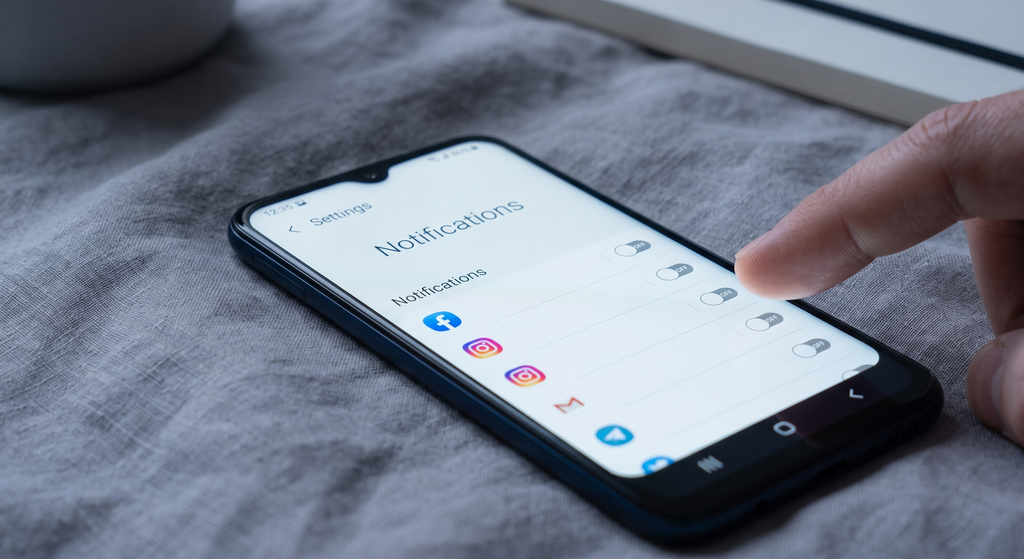
Every notification can wake the screen, activate sounds or vibration, and use background data. Too many notifications also make it harder to notice important messages.
Disable notifications for:
- Shopping promotions
- Games
- News alerts you do not read
- Social accounts you rarely check
- Repeated marketing messages
Keep notifications enabled for the apps that genuinely require your attention.
9. Turn off or reduce vibration and haptic feedback
Vibration uses energy. If battery life is more important than vibration feedback, reduce it for calls, notifications, keyboard taps, and touch interactions.
You can usually find these options under Sound, Vibration, Keyboard, or Haptics settings.
This change will not transform battery life by itself, but it can help when combined with display and background-activity improvements.
10. Use Battery Saver or Low Power Mode
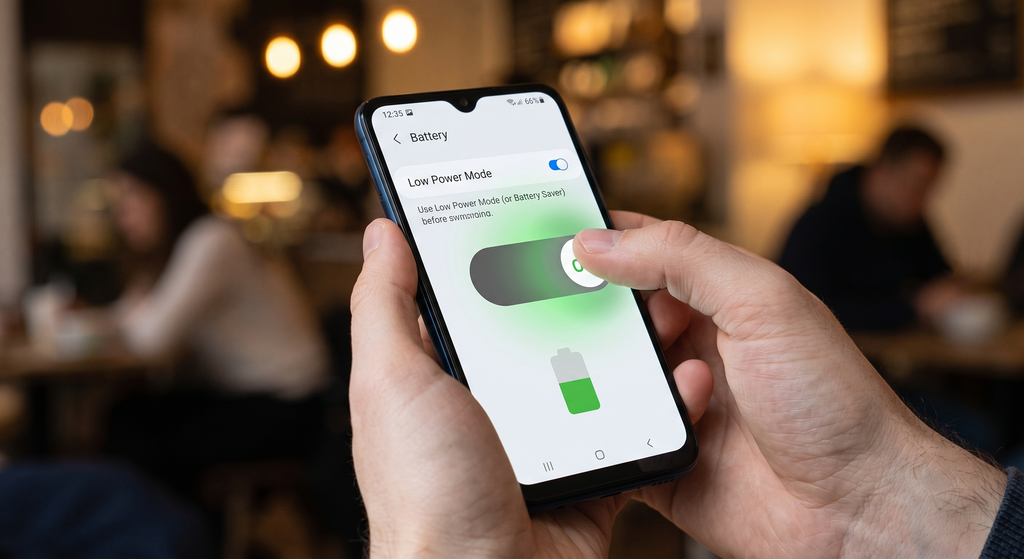
Battery-saving modes limit background activity, reduce performance, delay synchronization, and sometimes reduce visual effects.
Android
Open Settings > Battery and enable Battery Saver or Power Saving Mode.
iPhone
Open Settings > Battery and turn on Low Power Mode.
Use these modes when your battery is running low or when you know you will be away from a charger. Some notifications or automatic updates may be delayed while the mode is active.
11. Keep your phone and apps updated
Software updates can fix bugs that cause excessive battery use. Update your phone through its system settings and update apps through the official app store.
However, battery performance may temporarily change after a major system update while the phone indexes files, updates apps, or completes background tasks. If battery drain continues for several days, check battery usage again and investigate the top-consuming apps.
12. Remove or replace apps that drain the battery
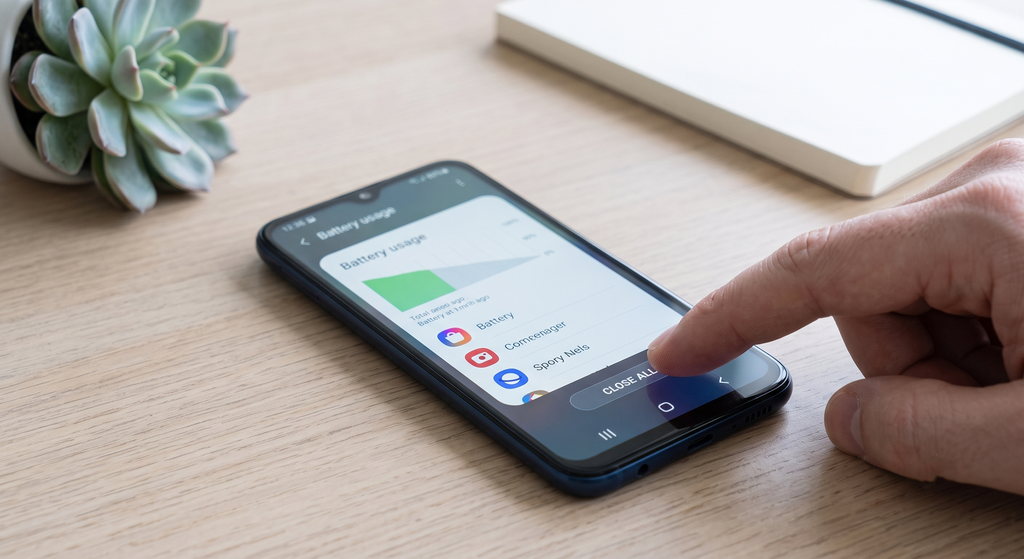
If one app repeatedly appears at the top of your battery report and you do not need it, consider these options:
- Update the app.
- Check whether it has a lighter version or browser alternative.
- Restrict its background activity.
- Reinstall it if it appears to be behaving incorrectly.
- Remove it if you no longer use it.
Avoid installing so-called battery booster or memory-cleaner apps. Many of them run continuously, display advertisements, or perform tasks your phone already handles automatically.
13. Avoid extreme heat and cold
Temperature can affect battery performance. High heat is particularly harmful over time and can cause the battery to drain faster temporarily.
To protect your phone:
- Do not leave it in direct sunlight.
- Avoid using demanding games while the phone is very hot.
- Remove thick cases temporarily if the device becomes unusually hot while charging.
- Do not charge it under a pillow or blanket.
- Keep it away from very cold conditions when possible.
If the phone becomes extremely hot, unplug it, stop demanding apps, remove it from direct heat, and let it cool naturally.
14. Use a suitable charger and cable
Use the original charger or a reliable charger that meets your phone manufacturer’s specifications. Damaged cables, loose connections, and low-quality chargers can cause slow or inconsistent charging.
Fast charging is convenient, but it can generate more heat. If you do not need a quick charge, standard charging may produce less heat in some situations.
Do not continue using a cable with exposed wires, bent connectors, or signs of overheating.
15. Check the battery’s health and age
Lithium-ion batteries naturally lose capacity as they age. If your phone is several years old and the battery drains quickly even after you reduce usage, the battery may simply be worn.
Look for the battery-health feature in your phone settings. If the battery is swollen, the screen is lifting, or the phone becomes dangerously hot, stop using it and seek professional repair or replacement advice. Do not puncture, open, or dispose of a swollen battery in household trash.
A quick battery-saving checklist
Try these changes first:
- Check which apps use the most battery
- Lower brightness and shorten screen timeout
- Enable Adaptive brightness or Auto-Brightness
- Restrict unnecessary background activity
- Review location permissions
- Disable unnecessary notifications
- Turn off unused Bluetooth, hotspot, or NFC
- Use Battery Saver or Low Power Mode
- Update your phone and apps
- Keep the phone away from extreme heat
Why is my phone battery draining so fast?
The most common causes are high screen brightness, demanding apps, weak mobile signal, background activity, location tracking, poor software behavior, and an old battery. Check your phone’s battery-usage report first instead of guessing.
Does closing all apps save battery?
Usually, no. Frequently force-closing and reopening apps can use more power than allowing the phone to manage them. Close an app when it is frozen, malfunctioning, or clearly using excessive battery in the background. Otherwise, focus on restricting unnecessary background activity.
Should I charge my phone overnight?
Modern phones include charging-management features that reduce the risk of continuous full-speed charging. Still, heat is not good for battery health. Use a safe charger, keep the phone uncovered, and enable optimized or adaptive charging if your device provides it.
Does Dark Mode always save battery?
Dark Mode is most likely to save noticeable power on OLED or AMOLED displays. The benefit may be smaller on LCD screens. Lowering brightness and reducing screen-on time usually have a more direct effect.
Final advice
The best way to improve phone battery life is to identify the biggest source of battery drain and change that first. For most people, the most effective combination is lower screen brightness, fewer background processes, better location permissions, and reduced notifications.
Make the changes gradually and check your battery report again after a day. That will show which adjustments are actually helping your phone.
What helped your phone battery last longer? Share your phone model and the setting that made the biggest difference.